How to Build a Custom Mason AI Automation: The 5 Key Elements
Automations make it easy to complete routine tasks consistently and in a fraction of the time. Learn how to build your own custom automations with Mason.

Ressio Staff
October 22, 2026
One project manager posts detailed daily logs, another writes two lines. The quality of the homeowner's Friday update depends on who wrote it that day and how much time they had.
Across every job, that weekly busywork adds up to hours and leaves clients with an uneven picture of their build.
Automations in Mason, Ressio's AI assistant, are built for this kind of work. You set up the task once, and anyone on your team can run it the same way every time. It's one of the most practical uses of AI for home builders, because it targets the work that already eats up the week.
How Mason AI automations work
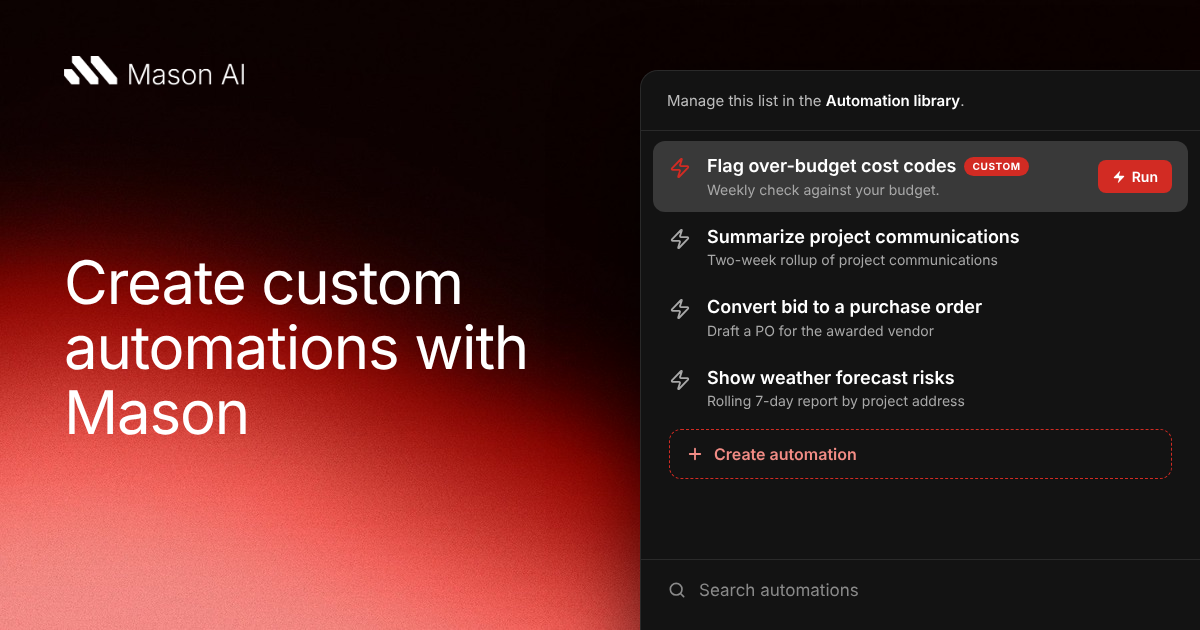
An automation is a saved set of instructions that Mason follows each time it runs. You write down what you want once, and from then on Mason pulls the right information from your projects, asks the questions it needs answered, and produces the result in the format you chose. What you get are cleaner, more consistent documents in less time.
Ressio comes with a library of ready-made automations, and you can also build your own around the way your company works. This post covers how to do that.
Want to see it done? In our recent webinar, Why AI Is the Future of Construction Management, Featuring Mason 2.0, Ressio product owner Zach Baumann builds three custom automations live. Watch the on-demand recording.
3 ways to create a custom automation in Mason
The best path depends on your comfort with prompting and how much you already know about what you want to create..
Clone an existing automation. This is the fastest option and best for creating automations that are similar to ones already in the library. Find a ready-made automation that's close to what you need, duplicate it, and change the parts that don't fit, like shortening a schedule look-ahead from five days to three. You can edit the copy yourself or ask Mason to make the change for you.
Build it from scratch. If you know exactly what you want and you're comfortable writing instructions, you can create a new automation and fill in its name, description, and instructions yourself. Be sure to consider the five key elements of an automation (see below) as you write your prompt.
Have Mason draft it for you. This is the option we recommend for most builders. Describe the problem you're trying to solve, the information that matters, and what you want the result to look like. Mason drafts the full automation, including guardrails like asking for missing information instead of guessing, and shows it to you for approval before saving it.
The 5 key elements of a custom AI automation
Whichever path you choose, a good automation answers the same five questions. To make them concrete, here's how they'd apply to an example many builders could use: a Friday list of open items for each project manager.
1. Trigger: when and why does someone run it?
Start with the moment the automation is for. For example, a project manager might run it on Friday afternoon to close out the week and see what's still open before Monday.
2. Inputs: what should Mason look at?
Decide which projects it covers, whether that's active jobs, warranty jobs, remodels, or custom homes. Set the date range. Then decide whether Mason should ask the user any questions before it starts. For the Friday list, the inputs are the project manager's active jobs and the week ahead.
3. Work: what should Mason find, summarize, or draft?
This is the job itself. In our current example, Mason might look for overdue to-dos, selections coming due, and purchase orders that still need attention.
4. Output: what should the result look like?
Be specific. Should Mason create the record, like posting a daily log, or just draft the text? Should the result be a table, a short summary, or a set of schedule updates? For the Friday list, a table organized by project is easiest to scan.
5. Review: what needs checking before it's used?
Decide what a person should confirm before the result goes anywhere. Mason helps here by design: before it creates or changes anything in Ressio, it shows you what it's about to do and waits for your approval.
Before you share an automation with your team
A few habits will save you headaches later:
- Test it first. Run the automation yourself a few times before anyone else uses it.
- Keep it disabled until it's ready. A disabled automation stays hidden from your team, so you can refine it without anyone running a half-finished version.
- Ask Mason for a second look. Even if you wrote the instructions yourself, Mason can review them and suggest changes that make them clearer.
- Share it with the right roles. You choose whether team members and field users can run each automation. Permissions carry through too, so a field user can't reach financial data even if an automation asks for it.
Once it's shared, your team can run it from the automations menu, call it up by name in a Mason conversation, or run it from their phone on the job site.
How to choose your first construction automation
Pick one process your team repeats every week, whether that's a weekly log, a financial summary for each project, a list of open and overdue items, or the warranty tasks that need attention. Build the smallest useful version, test it, and hand it to the person who owns that task.
From there, you can see what it's worth. Mason tracks the estimated hours your automations save each month, which automations run most, and who's running them. That makes it easy to tell which ones to build next.
Watch Mason automations built live
The fastest way to learn is to watch one get built. In our on-demand webinar, Ressio product owner Zach Baumann clones an automation, builds a client-facing weekly recap from scratch, and has Mason draft a morning briefing. Guest speaker Grant Fullenbach, founder and CEO of Go First Consulting, explains how to connect Mason to tools like Claude and ChatGPT to pull in outside information.
Watch Why AI Is the Future of Construction Management, Featuring Mason 2.0 on demand